Maven Build Cache Extension

One of the advantages Gradle had over Maven was build caching.

Thanks to Maven Cache Build Extension  you can also get build caching for maven builds too.

How to set this up

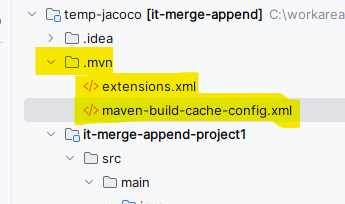
On the top level of your maven project add

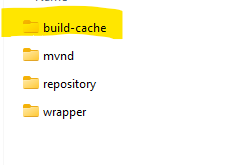
.mvn folder

Within the mvn folder add extensions.xml  and maven-build-cache-config.xml

Example


The contents of extensions.xml should be something like this

<extensions>
    <extension>
        <groupId>org.apache.maven.extensions</groupId>
        <artifactId>maven-build-cache-extension</artifactId>
        <version>1.2.1</version>
    </extension>
</extensions>


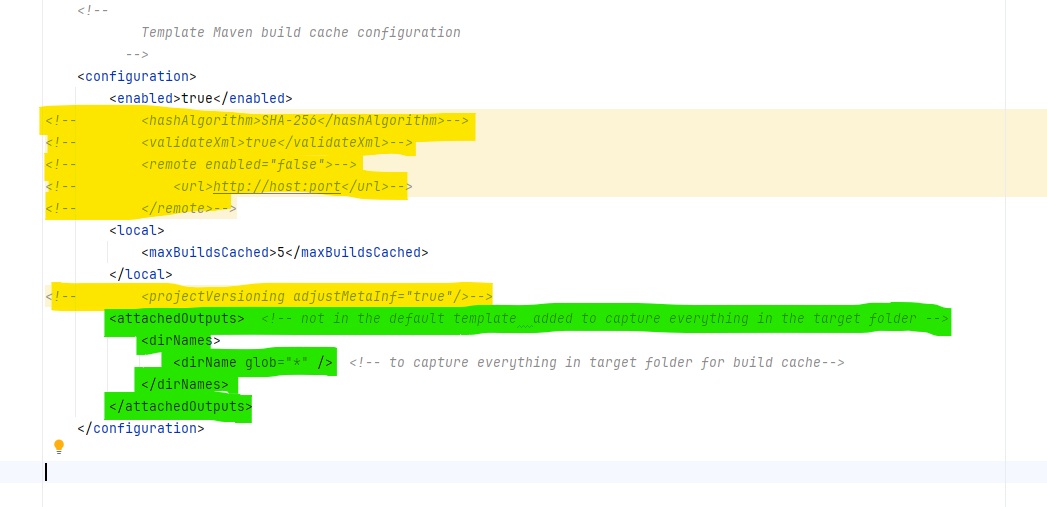
The contents of  maven-build-cache-config.xml should be like this from the template provided by in this  In the Getting Started page for Maven Build Cache Extension 

(link for the template config can be found here)

Note the default config has remote enabled, which is annoying default if you just want to get local build cache working first.

So here are few adjustments I made to the template maven-build-cache-config.xml

(yellow commented out ,  green additional config added)


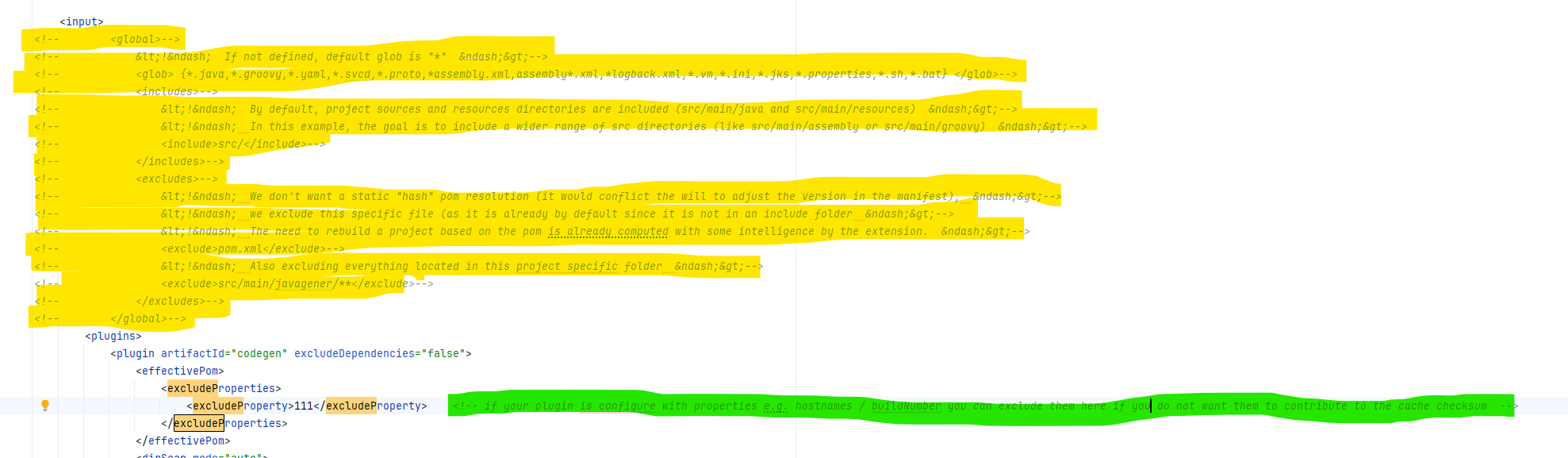
Also for slimplicity I also comment out the global section with in the input section of the template


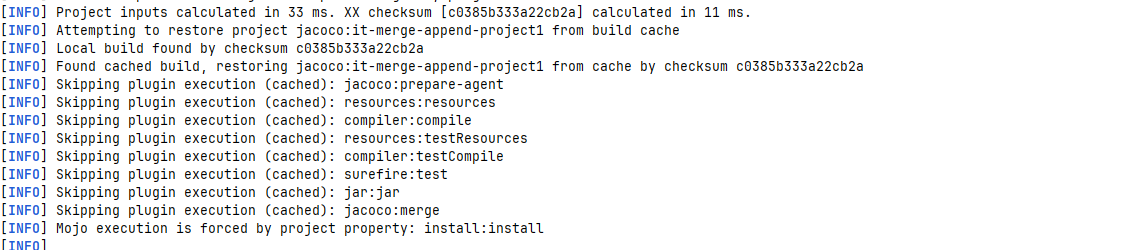
Now when you run your maven build (the second time), you should see it skipping various plugins as it uses the cached results instead


Where is the cached build stored?  By default in the same folder your your m2 repository resides


Experimenting with Valhalla Early Access Build 26-jep401ea2+1-1 (2025/10/10)


A new build of Valhalla has been made available on https://jdk.java.net/valhalla/ this version is built on top Java 26 early build.

It’s been a while since I tried to the previous Valhalla Early access in 2022

A lot has has changed since then.

In the previous version they had concept of value (without identity) and primitive class (without identity and not nullable)

Now they have simplified to value class (without identity)

Whether a value can be nullable is or not, will be delivered separately by this JEP draft: Null-Restricted Value Class Types (Preview)

Reference Code – No Value class


public class Main {
    static void main() {
        long start = System.currentTimeMillis();
        int length = 10_000_000;
        Point3D[] myArray = new Point3D[length];
        for (int i = 0; i &lt; myArray.length; i++) {
            myArray[i]=new Point3D(0f, 0f, 0f);
        }
        System.out.println("Print last value of array : "+myArray[length-1]);
        Runtime.getRuntime().gc();
        printMemoryUsage();
        System.out.println("Array length : "+myArray.length);
        System.out.println("Total time "+(System.currentTimeMillis() - start)+ " ms");
    }
    private static void printMemoryUsage() {
        System.out.println("MB: " + (double) (Runtime.getRuntime().totalMemory() - Runtime.getRuntime().freeMemory()) / (1024*1024));
    }
    static class Point3D {
        private float x ;
        private  float y ;
        private  float z ;
        public Point3D(float x, float y, float z) {
            this.x = x;
            this.y = y;
            this.z = z;
        }
        @Override
        public String toString() {
            return "Point3D{" +
                    "x=" + x +
                    ", y=" + y +
                    ", z=" + z +
                    '}';
        }
    }
}


If I run this on my machine I get this output

Print last value of array : Point3D{x=0.0, y=0.0, z=0.0}
MB: 269.9514617919922
Array length : 10000000
Total time 182 ms


Now if I do the same using Value class (make Point3D value class)


public class Main {
    static void main() {
        long start = System.currentTimeMillis();
        int length = 10_000_000;
        Point3D[] myArray = new Point3D[length];
        for (int i = 0; i &lt; myArray.length; i++) {
            myArray[i]=new Point3D(0f, 0f, 0f);
        }
        System.out.println("Print last value of array : "+myArray[length-1]);
        Runtime.getRuntime().gc();
        printMemoryUsage();
        System.out.println("Array length : "+myArray.length);
        System.out.println("Total time "+(System.currentTimeMillis() - start)+ " ms");
    }
    private static void printMemoryUsage() {
        System.out.println("MB: " + (double) (Runtime.getRuntime().totalMemory() - Runtime.getRuntime().freeMemory()) / (1024*1024));
    }
    static value class Point3D {
        private float x ;
        private  float y ;
        private  float z ;
        public Point3D(float x, float y, float z) {
            this.x = x;
            this.y = y;
            this.z = z;
        }
        @Override
        public String toString() {
            return "Point3D{" +
                    "x=" + x +
                    ", y=" + y +
                    ", z=" + z +
                    '}';
        }
    }
}

Print last value of array : Point3D{x=0.0, y=0.0, z=0.0}
MB: 269.80834197998047
Array length : 10000000
Total time 224 ms

Oh dear 🙁 actually ran slower using value class !


Currently (in this build for now) value class is restricted to 64bit for flattening.

The point3d class has 3 floats = 32 * 3 = 96 bits

In additional there is also an extra bit also added to keep track of whether the value is null or not.

So it’s actually (32 * 3) +1 = 97 bits


Why 64bit restriction for flattening, apparently that is to align with size of registers which are 64 bits, otherwise if you need multiple registers, you are in danger of tearing – where threads might be able to read an inconsistent value.


However, in the EA build there is an option to create an array of value classes where you can accept tearning might occur and also specify the values cannot be null


Replace these lines


for (int i = 0; i &lt; myArray.length; i++) {
    myArray[i]=new Point3D(0f, 0f, 0);
}


with this instead (but note this using a jdk internal class ) so you will need to use this additional command line flags

–add-exports java.base/jdk.internal.value=ALL-UNNAMED –enable-preview


Point3D[] myArray = (Point3D[]) ValueClass.newNullRestrictedNonAtomicArray(Point3D.class, 10_000_000, new Point3D(0f, 0f, 0f));


Full Code (Enabling Null-Restriction and Non-Atomicity )


import jdk.internal.value.ValueClass;

public class Main {
    static void main() {
        long start = System.currentTimeMillis();
        int length = 10_000_000;
        Point3D[] myArray = (Point3D[]) ValueClass.newNullRestrictedNonAtomicArray(Point3D.class, 10_000_000, new Point3D(0f, 0f, 0f));
        System.out.println("Print last value of array : "+myArray[length-1]);
        Runtime.getRuntime().gc();
        printMemoryUsage();
        System.out.println("Array length : "+myArray.length);
        System.out.println("Total time "+(System.currentTimeMillis() - start)+ " ms");
    }
    private static void printMemoryUsage() {
        System.out.println("MB: " + (double) (Runtime.getRuntime().totalMemory() - Runtime.getRuntime().freeMemory()) / (1024*1024));
    }
    static value class Point3D {
        private float x ;
        private  float y ;
        private  float z ;
        public Point3D(float x, float y, float z) {
            this.x = x;
            this.y = y;
            this.z = z;
        }
        @Override
        public String toString() {
            return "Point3D{" +
                    "x=" + x +
                    ", y=" + y +
                    ", z=" + z +
                    '}';
        }
    }
}

With above the output is now

Print last value of array : Point3D{x=0.0, y=0.0, z=0.0}
MB: 40.89228820800781
Array length : 10000000
Total time 109 ms

🙂

Wow!! From 270 mb we went down to 41 mb ! a huge reduction in memory usage!

Also the execution time was reduced from 182ms to 109ms


Hopefully this will be promoted from preview to something that ships in Java soon. Can’t wait!

Using JaCoCo merge goal to report coverage in multi-module projects

This Example github project shows how jacoco:merge goal can be used to merge all the exec files

In this example we two projects.  project1 and project2

  • project1 has 2 classes : Example1 and Example2. It also has 1 unit test to fully cover Example1
  • project2 has only unit test. The unit test fully covers Example2 from project1

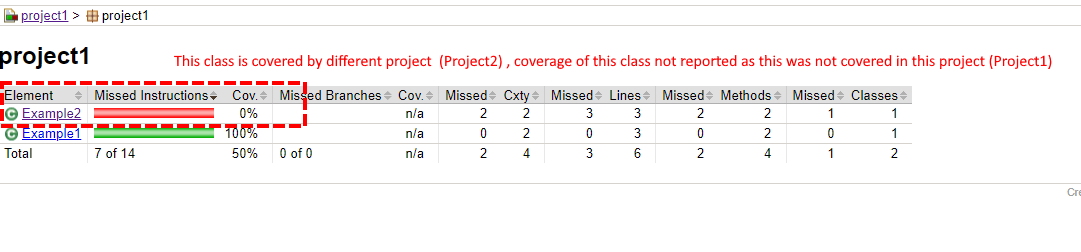
As project1 is not covering Example2, jacoco will report 0% coverage for Example2

Firstly, to show that JaCoCo will show 0% coverage for Example2 class in project1 run these commands:


mvn clean verify

then run


mvn jacoco:report

if you go into folder

project1/target/site/jacoco/project1 you’ll the reports produced by jacoco

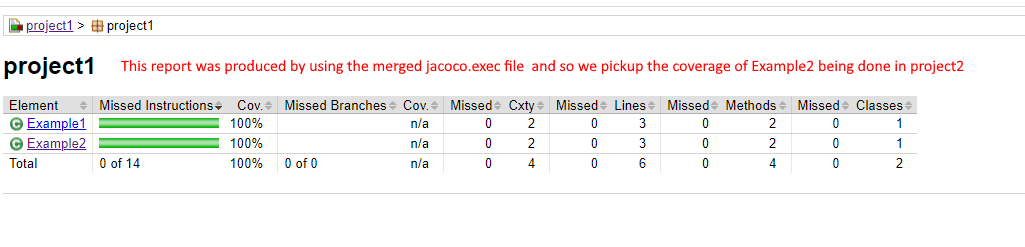
The report shows class Example1 has 100% coverage whilst Example2 (which is covered by project2) has 0% coverage

Using merge goal to get JaCoCo to report on coverage provided by other projects

For the above example, we want to show Example2 is fully covered (as coverage was provided by project2)

To get jacoco to report coverage provided by other projects. We need to merge all the jacoco.exec files we have

  • project1 jacoco exec is under project1/target/jacoco.exec
  • project2 jacoco exec is under project2/target/jacoco.exec

Merge the jacoco.exec from project 1 and project 2 to make a merged jacoco.exec The merged jacoco.exec file will show we have 100% coverage for Example2 class. We will then configure the reporting goal to use this merged exec file.

Step 1

We want to copy all the jacoco.exec file into the top level folder target folder (we may also need to create the target folder)

we need to copy all jacoco.exec we have into the top-level target folder, but so that they don’t overwrite each other, we need to give them unique names, for this we will use merge goal (or you can use copy script for this step)

Note: jacoco:merge goal requires fileSets config to be present see : merge goal documentation

We will add this to our the jacoco plugin configuration (so that we can use the merge goal)

<fileSets>
  <fileSet>
    <directory>${project.build.directory}</directory>
    <includes>
      <include>*.exec</include>
    </includes>
  </fileSet>
</fileSets>

as mentioned, the file(s) when written to the top level, we don’t want them to overwrite to each other, so we give them file name :  

${project.artifactId}.exec

E.g. on Windows if the project level folder was : c:/temp/jacoco-merge

You would run this (making sure that c:/temp/jacoco-merge/target) exists first


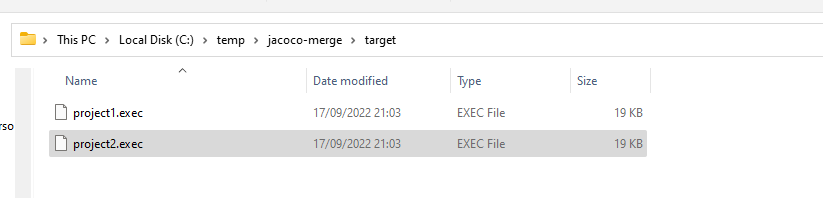
mvn jacoco:merge -Djacoco.destFile=c:/temp/jacoco-merge/target/${project.artifactId}.exec

End result should look like this (strictly speaking, you could use copy commands to achieve this instead)

Step 2

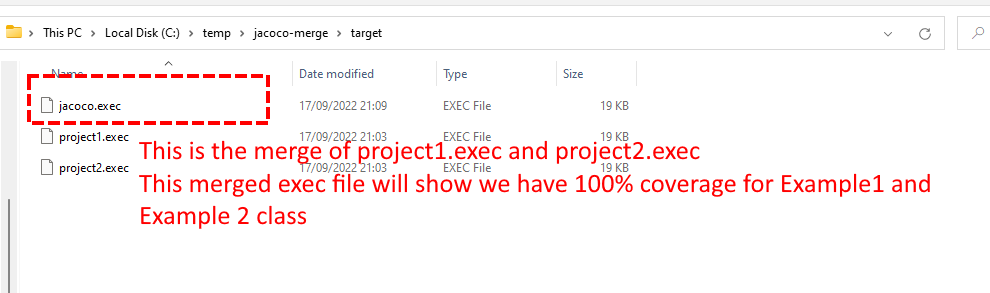
Now that we have all the exec files (project1.exec and project2.exec) in one folder, we need to merge these 2 files to produce merged jacoco.exec file

For this, we run this command. NOTE: Since all the files are all in the top level folder, we only need to execute merge goal at the top level folder only so we use flag -N to not recurse this merge goal in the child projects.


mvn -N jacoco:merge

Result of above

Step 3

Now that we have the merged exec file produced in above step. What we want to do is run the report goal (to generate the html reports) but instead the of using default jacoco.dataFile value (${project.build.directory}/jacoco.exec) we will configure jacoco.dataFile to instead use the merged jacoco exe file


mvn jacoco:report -Djacoco.dataFile=C:\temp\jacoco-merge\target\jacoco.exec

Now if we look again in project1/target/site/jacoco/project1 we can see it shows both Example1 and Example2 have 100% coverage

Experimenting with Java Valhalla

The vallhalla project will hopefully bring lower cost objects (at the expense of giving up Object Identity and/or nullability)

Shipilev provides daily Valhalla builds, you can download from here :

Wanted to compare the difference in memory / speed of using the value and primitive types. Here is simple test program I used.

As Regular Object (With Identity and Nullability)

public class Main {

    // Ensure you are using the valhalla jdk build
    // run with this command :
    // javac -XDenablePrimitiveClasses  Main.java
    // then 
    // java -XX:+EnablePrimitiveClasses Main

    static public class Point {
        private final double x ;
        private final double y ;

        public Point(double x, double y) {
            this.x = x;
            this.y = y;
        }
    }

    public static void main(String[] args) {

        long start = System.currentTimeMillis();

        Point[] myArray = new Point[10_000_000];
        for (int i = 0; i < myArray.length; i++) {
            myArray[i]=new Point(2d,3d);
        }

        Runtime.getRuntime().gc();

        printMemoryUsage();

        System.out.println("Array length : "+myArray.length);

        System.out.println("Total time "+(System.currentTimeMillis() - start)+ " ms");

    }

    private static void printMemoryUsage() {
        System.out.println("MB: " + (double) (Runtime.getRuntime().totalMemory() - Runtime.getRuntime().freeMemory()) / (1024*1024));
    }

}

If I run this above example (using regular java objects) these are the numbers I’m getting

java Main.java

MB: 346.2878112792969
Array length : 10000000
Total time 250 ms

Now if we change the above Point class by making a primitive class (giving up Identity and Nullability) . To make it easy to do this, they have provided temporary keywords

primitive to declare the class as primitive type (giving up identity and nullability)

value to declare the class as value type (giving up identity)

As Primitive Type

public class Main {

    // Ensure you are using the valhalla jdk build
    // run with this command :
    // javac -XDenablePrimitiveClasses  Main.java
    // then 
    // java -XX:+EnablePrimitiveClasses Main

    static public primitive class Point {
        private final double x ;
        private final double y ;

        public Point(double x, double y) {
            this.x = x;
            this.y = y;
        }
    }

    public static void main(String[] args) {

        long start = System.currentTimeMillis();

        Point[] myArray = new Point[10_000_000];
        for (int i = 0; i < myArray.length; i++) {
            myArray[i]=new Point(2d,3d);
        }

        Runtime.getRuntime().gc();

        printMemoryUsage();

        System.out.println("Array length : "+myArray.length);

        System.out.println("Total time "+(System.currentTimeMillis() - start)+ " ms");

    }

    private static void printMemoryUsage() {
        System.out.println("MB: " + (double) (Runtime.getRuntime().totalMemory() - Runtime.getRuntime().freeMemory()) / (1024*1024));
    }

}

This are the results if Point is primitive class

java Main.java

MB: 158.47823333740234
Array length : 10000000
Total time 72 ms

By turning the Point class into primitive class, it uses less than half the memory and it is 3x faster

As Value Type ( using “value” instead)

MB: 347.8201599121094
Array length : 10000000
Total time 224 ms

Declaring class as value type didn’t yield any memory saving, but did make code run slightly faster.

Heap Dump

To get a heap dump of an existing application you need to know the PID of your java process.

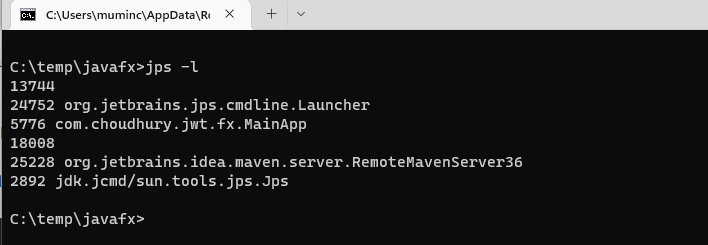
To do this, you can use the jps command

jps -l

So for above, I can see the PID for the process is 5776

Once you know your PID you can use the jcmd to generate the heap dump

jcmd <pid> GC.heap_dump <file-path>

For above PID I can do


jcmd 5776 GC.heap_dump c:/temp/dump.hprof

To open the the heap dump, you can use YourKit or Open source tools such as Eclipse MAT tool

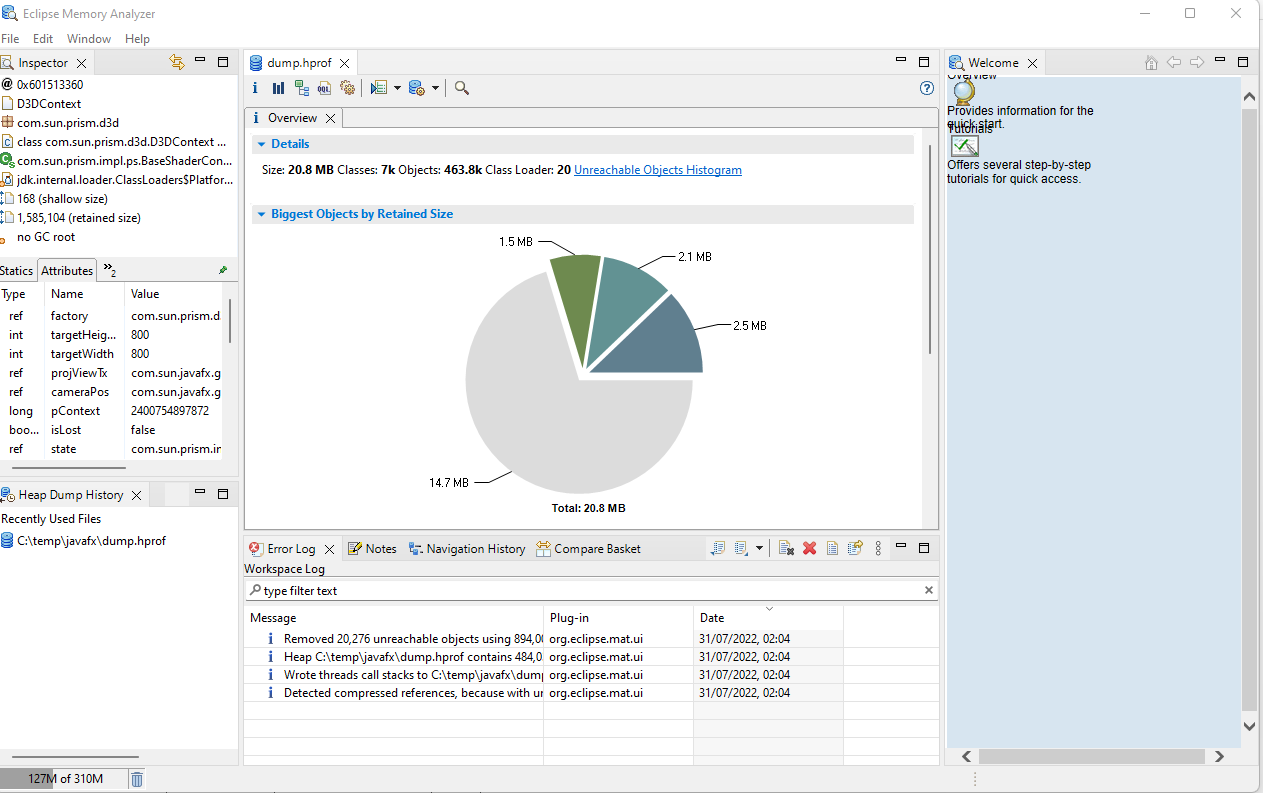
Using Eclipse MAT Tool we can open the Heap dump

Using the Eclipse MAT tool you can see the drill in the pie chat to list Objects and to see the incoming references, see the retain size of objects, see the paths to GC Root. MAT tool also has leak hunter tool to try to find problem areas.

Maven Enforcer Plugin

The maven-enforcer-plugin (and it’s various extensions) are really useful if you want to enforce various build rules such as :

  • Make sure the maven build is using minimum required Java and Maven versions.
  • Build is not referring to snapshot dependencies
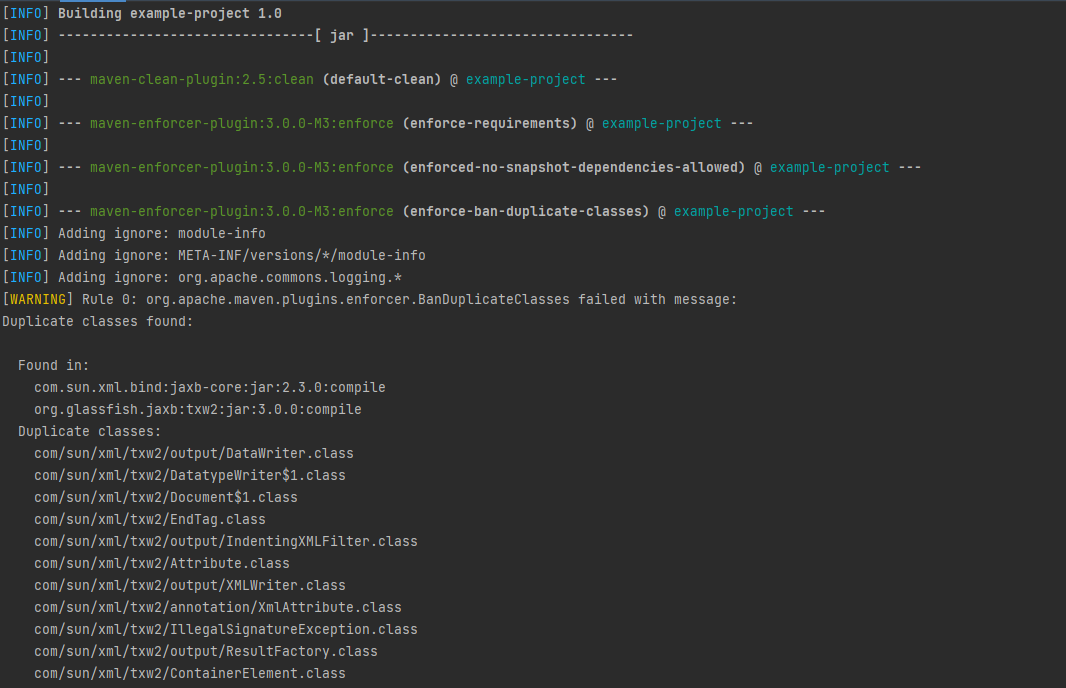
  • No Duplicate classes in your project dependencies (see screenshot below of what it reports when it finds duplicates)
  • Ban certain imports (e.g. java.util.Vector, java.util.Date etc) being used in your build.

Here is an example project to show above checks in action.

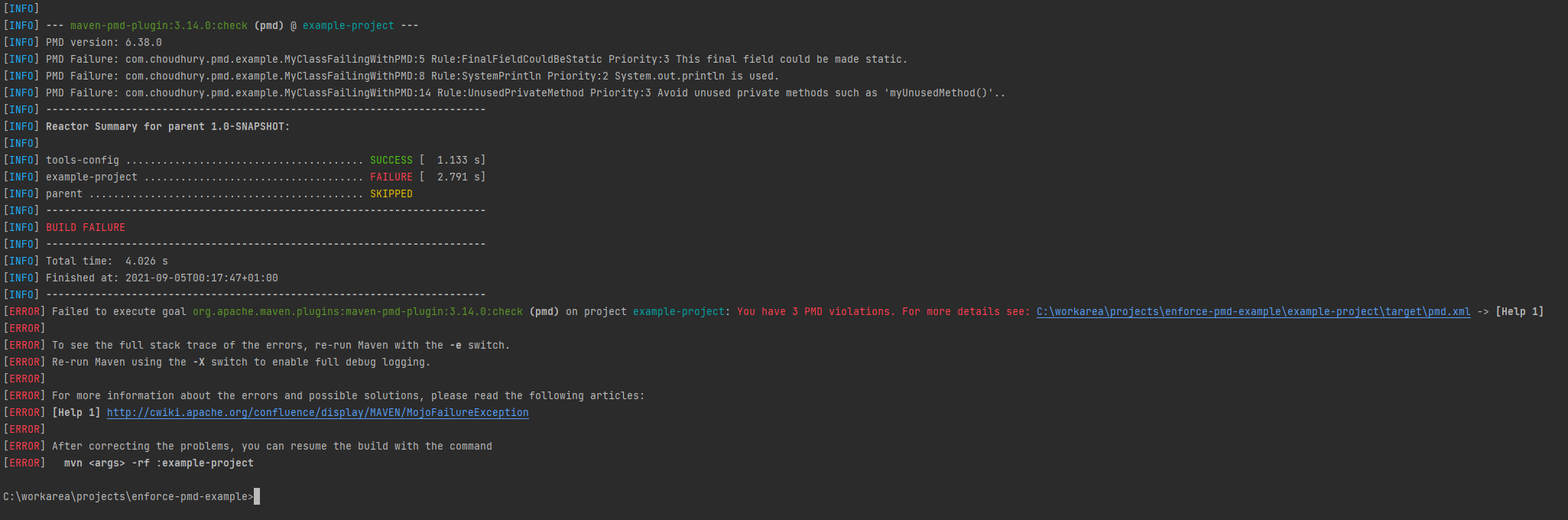
Output of BanDuplicateClasses check if it detects duplicate classes.

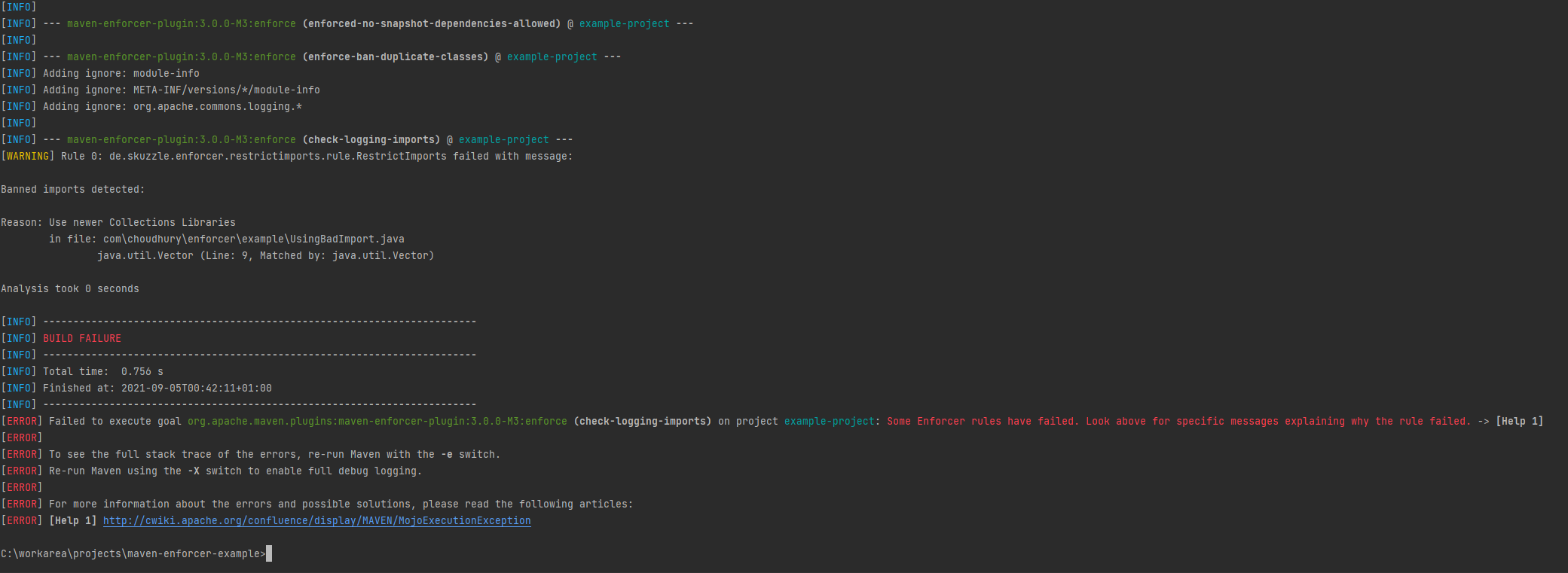
Output of RestrictImports if finds usage of Banned Import (example: java.util.Vector).

Debugging Orika Mapper Generated Classes

Orika Mapper is mapping library that generates mapper classes at runtime, because the classes are generated in memory, it can be pain to debug why generated mapping is not working.

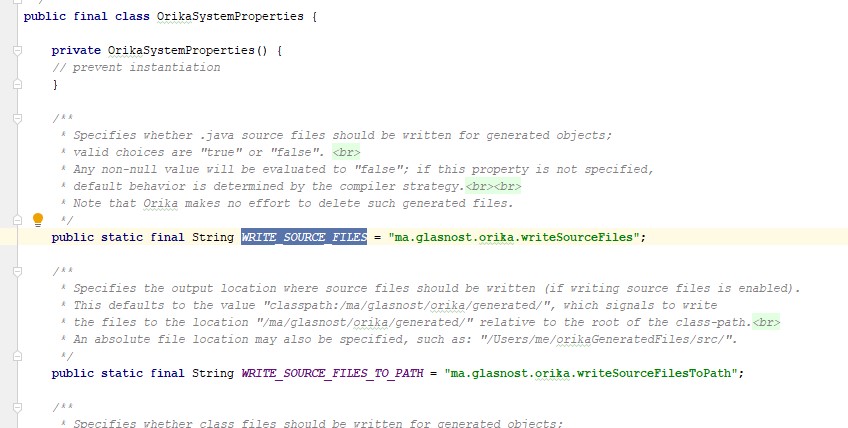
Orika has the an option to output source code for the generated classes

To make sure the source code is written to the filesystem you need to run with this system property


-Dma.glasnost.orika.writeSourceFiles=true


See OrikaSystemProperties class for more details about the various properties

Using Error-Prone with NullAway Plugin

Error Prone is static anaylsis tool for Java. It hooks into the compilation process. To use in your maven build you need do some configuration for the maven compiler plugin

An example of error prone being setup for maven compiler plugin with also Null Plugin enabled

<plugin>
<groupId>org.apache.maven.plugins</groupId>
<artifactId>maven-compiler-plugin</artifactId>
<version>3.8.1</version>
<configuration>
<source>8</source>
<target>8</target>
<encoding>UTF-8</encoding>
<fork>true</fork>
<compilerArgs>
<arg>-Werror</arg>
<arg>-Xlint:all</arg>
<arg>-Xlint:-processing</arg>
<arg>-XDcompilePolicy=simple</arg>
<!-- Note the -XepOpt:NullAway:AnnotatedPackages= is mandatory -->
<arg>-Xplugin:ErrorProne -Xep:MissingOverride:ERROR -Xep:NullAway:ERROR -XepOpt:NullAway:AnnotatedPackages=com.choudhury</arg>
<arg>-J--add-exports=jdk.compiler/com.sun.tools.javac.api=ALL-UNNAMED</arg>
<arg>-J--add-exports=jdk.compiler/com.sun.tools.javac.file=ALL-UNNAMED</arg>
<arg>-J--add-exports=jdk.compiler/com.sun.tools.javac.main=ALL-UNNAMED</arg>
<arg>-J--add-exports=jdk.compiler/com.sun.tools.javac.model=ALL-UNNAMED</arg>
<arg>-J--add-exports=jdk.compiler/com.sun.tools.javac.parser=ALL-UNNAMED</arg>
<arg>-J--add-exports=jdk.compiler/com.sun.tools.javac.processing=ALL-UNNAMED</arg>
<arg>-J--add-exports=jdk.compiler/com.sun.tools.javac.tree=ALL-UNNAMED</arg>
<arg>-J--add-exports=jdk.compiler/com.sun.tools.javac.util=ALL-UNNAMED</arg>
<arg>-J--add-opens=jdk.compiler/com.sun.tools.javac.code=ALL-UNNAMED</arg>
<arg>-J--add-opens=jdk.compiler/com.sun.tools.javac.comp=ALL-UNNAMED</arg>
</compilerArgs>
<annotationProcessorPaths>

<path>
<groupId>com.google.errorprone</groupId>
<artifactId>error_prone_core</artifactId>
<version>2.9.0</version>
</path>
<path>
<groupId>com.uber.nullaway</groupId>
<artifactId>nullaway</artifactId>
<version>0.9.2</version>
</path>

</annotationProcessorPaths>
</configuration>
</plugin>

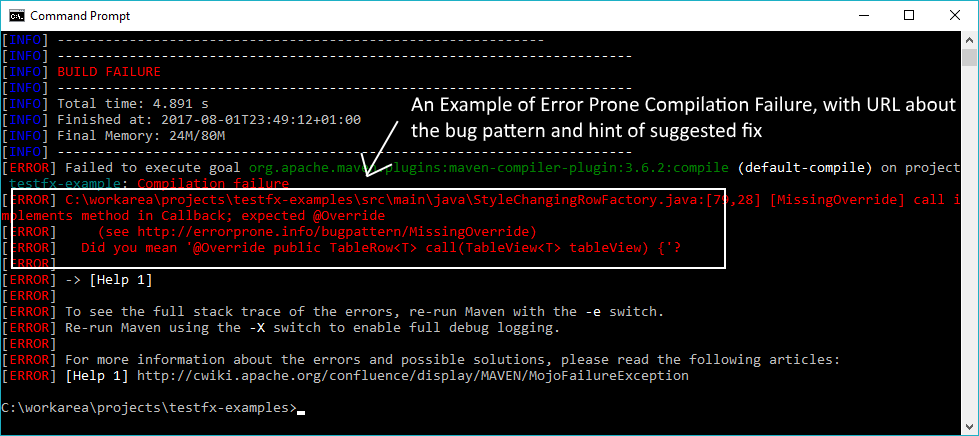
In the above we increased the severity error-prone’s MissingOverride bugpattern to Error (error-prone default was WARNING)

This how the output looks like if now in maven’s compilation goal a class that has a missing @Override annotation

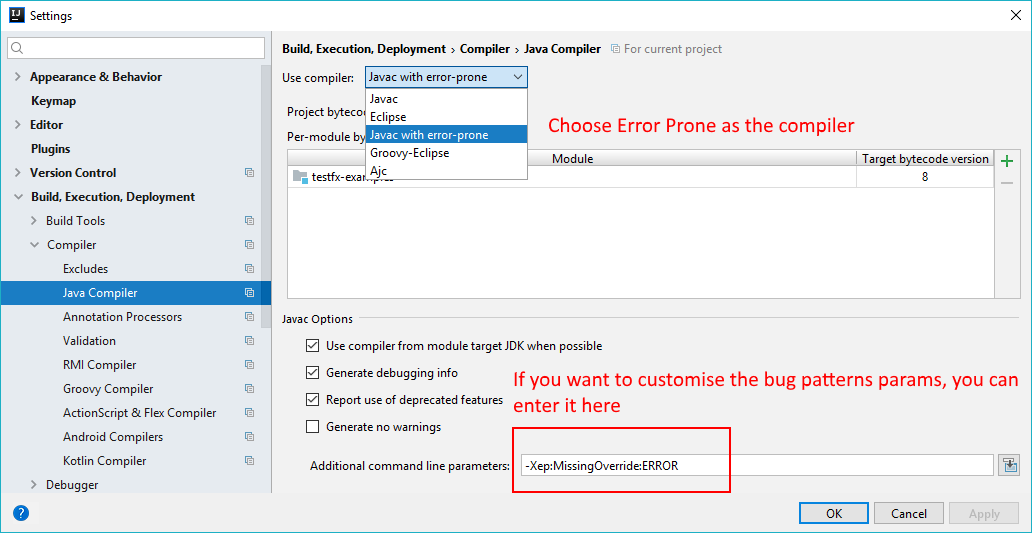
Another feature of error-prone is that it has Intellij Integration
You need to install the https://plugins.jetbrains.com/plugin/7349-error-prone-compiler-integration once that’s done you can change the compiler that Intellij uses

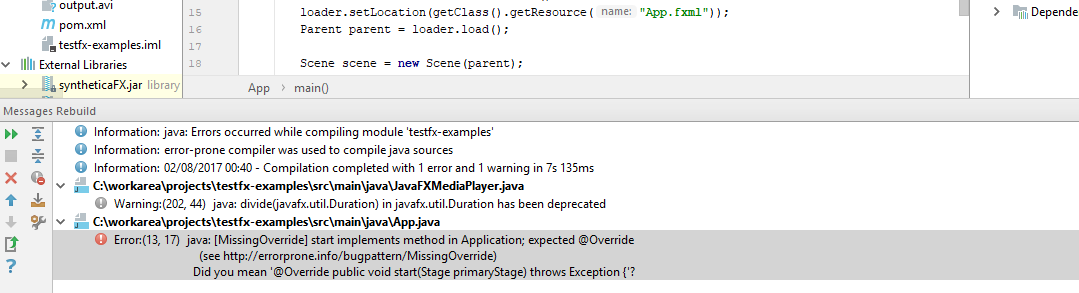
Now within Intellij you will get the same compilation errors as you get from maven

For more details about the installation, see the error-prone documentation http://errorprone.info/docs/installation

Example Maven Project Here